Using radare2 mcp with r2ghidra as security consultant
Introduction
As a security consultant, when you don’t work on the same type of engagement every time, you must try to learn how to use thousands of different types of security tools. Nowadays, with Artificial Intelligence (AI) our way to approach these challenges has changed. Knowing how and when to use AI, our productivity improves drastically.
In this post, I will explain how to create a quick reversing agent using OpenCode, radare2, the Ghidra decompiler for radare2 (r2ghidra), and thanks to OpenCode Zen offering in OpenCode these free models: Grok Code Fast 1, Big Pickle and GPT 5 Nano, MiniMax M2.1, and GLM 4.7.
Extra Ball
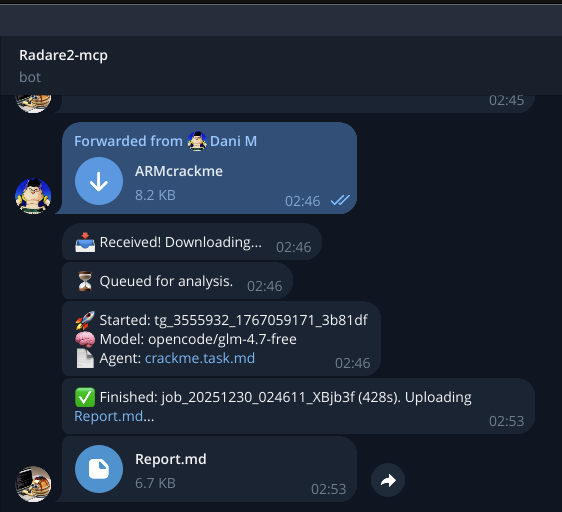
Thankfully, I had some tokens to spare, so I decided to get fancy and deploy a Telegram bot with Docker. It’s still a bit ‘bare-bones’, but it works pretty well! You can find the code in my GitHub repo
Radare2 + r2ghidra + r2mcp
radare2 (or r2 for short) is a reverse engineering framework. It’s open source and works on multiple platforms. You can install it from source:
git clone --depth 1 https://github.com/radareorg/radare2
cd radare2
sys/install.sh
That’s it! The install script handles all the dependencies and compilation for you.
radare2 has a package manager called r2pm (radare2 package manager) that lets you install additional tools. One of the most useful plugins is r2ghidra, which brings Ghidra’s decompiler directly into radare2. Ghidra’s decompiler produces readable C code from assembly, which makes reverse engineering easier.
To install everything we need, you use r2pm:
r2pm -U  # Update package database
r2pm -ci r2ghidra r2ghidra-sleigh r2mcp
The r2ghidra-sleigh package contains the Sleigh language specification files that Ghidra uses for decompilation.
r2mcp makes radare2 accessible via the Model Context Protocol (MCP). MCP allows OpenCode (or other AI agents) to interact with radare2. It’s included in the install command above.
Once installed you can configure the mcp to run as an stdio server with r2pm -r r2mcp. Press ^D to close the stream or use -h to see the other commandline flags that we can use to tweak the mcp. The most important ones are -m (minimode to reduce the amount of tools to save context), -r and -R flags will make it readonly, other sandboxing features are also available but that’s out of the scope of this post.
In addition you can use the -t flag to list all the available tools or directly use -T to call the tools from bash scripts.
Opencode
OpenCode is an AI coding assistant that can work with MCP servers. In our case, we’re using it to connect to r2mcp so the AI can use radare2.
Installation is super simple - just run their install script:
curl -fsSL https://opencode.ai/install | bash
After installation, you need to configure OpenCode to use r2mcp. Create a config file at ~/.config/opencode/opencode.json:
{
  "$schema": "https://opencode.ai/config.json",
  "mcp": {
    "radare2": {
      "type": "local",
      "command": ["r2pm", "-r", "r2mcp"],
      "enabled": true
    }
  }
}
This tells OpenCode to start r2mcp as a local process whenever it needs to interact with radare2.
OpenCode uses markdown files as “agents” or prompts. When you run opencode run <file.md>, it reads the markdown file and uses it as instructions for the AI. The AI then follows those instructions, as the prompt specifies that r2mcp must be used and the decompiler set to Ghidra (pdg).
In AI terms, an “agent” is a system that can take actions based on instructions. The markdown file contains the instructions (what to analyze, how to analyze it, what format to output), and OpenCode provides the execution environment with access to tools. A markdown file + OpenCode + MCP tools = a simple yet functional AI agent.
OpenCode offers three free models through their “Zen” tier:
opencode/grok-code- Fast and good for most tasksopencode/big-pickle- Another option with different characteristicsopencode/gpt-5-nano- Smaller but still capableopencode/glm-4.7-free- The new version of GML
You can switch between them using the -m flag:
opencode -m opencode/grok-code run my_agent.md
opencode -m opencode/big-pickle run my_agent.md
opencode -m opencode/gpt-5-nano run my_agent.md
opencode -m opencode/glm-4.7-free run my_agent.md
I’ve been using opencode/grok-code as my default, and it works pretty well for reverse engineering tasks (imho).
Prompting the agents
Creating good prompts is harder than it looks! I started by explaining what I needed to GPT-5.2 (using voice input for brainstorming). I wanted an AI agent that could analyze binaries for security issues, decompile functions, and produce structured reports.
GPT gave me a first draft, which I tested. It worked, but I noticed some issues: the agent wasn’t always following the right workflow, it sometimes missed important security checks, and the output format wasn’t consistent.
I took that first prompt, added notes about what I wanted to fix, and asked Claude Sonnet 4.5 to redesign it with more context. I explained the radare2 workflow better, added more specific instructions about security analysis, and clarified the expected output format.
The result: two agent prompts that work reasonably well:
analyze.task.md. General security analysis focused on finding vulnerabilitiescrackme.task.md. Specialized for CTF challenges and crackmes
These prompts are not perfect, but they’re good enough for a proof of concept, and they’re easy to improve. The markdown format makes it simple to iterate, edit the file, test it, see what breaks, and fix it. You don’t need to be a prompt engineering expert to get started. You can use AI to help you create better prompts, test them, and refine them over time.
My workflow was basically: explain → generate → test → identify issues → explain issues → regenerate → test again. Repeat until it works well enough for your needs.
Quick Disclaimer about prompting
Keep in mind that prompts don’t always work the same way across all LLMs, especially when switching to local LLMs. I’m not covering that here. This PoC works on some binaries, not magic. Definitely not the Sauron’s Prompt.
“One prompt to rule them all, one prompt to find them, one prompt to bring them all, and in the darkness bind them.”
Demo
Once everything is set up, using the tool is pretty easy. I created a bash script run_r2agent.sh that handles the Docker container setup and execution. Here’s how you use it:
# Docker mode (recommended)
./run_r2agent.sh --mode docker --file /path/to/binary --agent agents/analyze.task.md

# Local mode (requires local radare2 + OpenCode installation)
./run_r2agent.sh --mode local --file /path/to/binary --agent agents/crackme.task.md
The script creates a unique job directory under analysis/ with a timestamp, copies your binary there as input.bin, runs the Docker container, and collects all the outputs. When it’s done, you’ll find:
Report.md- The analysis reportopencode.log- Full log of the OpenCode executiondocker.log- Docker container logsmeta.json- Job metadata (binary name, size, timestamp, etc.)FINISHED_<seconds>- A file indicating completion time
The script also maintains a global reports.md index file that lists all your analysis jobs, which is useful when you’ve run many analyses.
A typical run:
$ ./run_r2agent.sh ./test_binary
[+] Job id:  job_20251215_143348_DL3wdZ
[+] Job dir: /path/to/r2agent/analysis/job_20251215_143348_DL3wdZ
[+] Copied input.bin: .../input.bin (13880 bytes)
[+] Launching container...
[+] Running OpenCode, logging to opencode.log ...
...
[+] Report:  .../Report.md
[+] OpenCode: .../opencode.log
[+] Docker:   .../docker.log
The analysis usually takes a few minutes depending on the binary size and complexity. The agent will decompile functions, analyze security features, check for vulnerabilities, and produce a comprehensive markdown report.
Dockering this s***
To make this reproducible and avoid dependency issues, I dockerized everything. The Dockerfile is based on Ubuntu 24.04 and installs all the tools we need.
The Dockerfile does the following:
- Installs build dependencies (gcc, make, git, cmake, etc.)
- Clones and compiles radare2 from source
- Creates a non-root user
opfor security - Installs r2pm plugins (r2mcp, r2ghidra, decai, r2ghidra-sleigh)
- Installs OpenCode CLI
- Copies the OpenCode config and a default agent prompt
- Sets up the entrypoint script
Here’s the Dockerfile:
FROM ubuntu:24.04

ARG DEBIAN_FRONTEND=noninteractive

RUN apt-get update && apt-get install -y --no-install-recommends \
    gcc make git wget curl ca-certificates sudo build-essential python3 python3-pip pkg-config meson ninja-build cmake file binutils xz-utils unzip zlib1g-dev \
  && rm -rf /var/lib/apt/lists/*

WORKDIR /opt
RUN git clone --depth 1 https://github.com/radareorg/radare2 \
  && cd radare2 \
  && chmod +x sys/install.sh \
  && sys/install.sh

RUN useradd -m -s /bin/bash op \
  && mkdir -p /workspace \
  && chown -R op:op /workspace

RUN mkdir -p /home/op/.local/share/opencode \
  && chown -R op:op /home/op/.local

ENV HOME="/home/op"
ENV PATH="/home/op/.opencode/bin:/home/op/.local/bin:/usr/local/bin:${PATH}"

WORKDIR /workspace
VOLUME ["/workspace"]

USER op

RUN r2pm -U
RUN r2pm -ci r2mcp r2ghidra r2ghidra-sleigh

RUN curl -fsSL https://opencode.ai/install | bash

RUN mkdir -p /home/op/.config/opencode
COPY --chown=op:op docker/opencode.json /home/op/.config/opencode/opencode.json

COPY --chown=op:op agents/analyze.task.md /opt/prompt_agent.md

USER root
COPY docker/run_analysis.sh /usr/local/bin/run_analysis.sh
RUN chmod +x /usr/local/bin/run_analysis.sh \
  && chown op:op /usr/local/bin/run_analysis.sh

USER op
ENTRYPOINT ["/usr/local/bin/run_analysis.sh"]
The entrypoint script run_analysis.sh handles the actual execution inside the container. It sets up compatibility symlinks (OpenCode sometimes writes to relative paths), checks for input.bin in /workspace (which is mounted from the host), copies a default agent prompt if none is provided, runs OpenCode with the agent prompt, and handles logging and error cases.
The script:
#!/usr/bin/env bash
# Runner for the r2agent container.
# - Uses /workspace as the shared directory (mount from host).
# - Ensures an analyze.task.md exists in /workspace (copies template if missing).
# - Requires /workspace/input.bin
# - Runs OpenCode and writes /workspace/report.md and /workspace/opencode.log
#
# Parameter passing mechanism:
# - Agent prompt: Received via mounted file at /workspace/prompt_agent.md
#   The host script (run_r2agent.sh) copies the agent file into the job directory
#   before mounting it as /workspace. If no agent is provided, a template is copied from
#   /opt/prompt_agent.md (see lines 32-35).
# - LLM model: Received via environment variable OPENCODE_MODEL
#   The host script sets this variable when launching the Docker container (e.g.,
#   docker run -e OPENCODE_MODEL="opencode/grok-code" ...). Defaults to "opencode/grok-code"
#   if not set (see line 61).

set -euo pipefail

WORKDIR="/workspace"
TEMPLATE_TASK="/opt/prompt_agent.md"
TASK_FILE="${WORKDIR}/prompt_agent.md"
BIN_FILE="${WORKDIR}/input.bin"
REPORT_FILE="${WORKDIR}/Report.md"
LOG_FILE="${WORKDIR}/opencode.log"

cd "${WORKDIR}"

# Create workspace directory (needed for compatibility)
# Some OpenCode runs may try to write a relative path like "workspace/report.md"
# (missing the leading slash). Since we run from /workspace, that becomes
# "/workspace/workspace/report.md". We'll handle symlinks after checking where
# the report was actually created.
#
# Important: /workspace is a host-mounted directory. Avoid creating absolute symlinks
# like "workspace -> /workspace" because they become broken on the host and can
# break post-processing (e.g., zipping job artifacts).
mkdir -p "${WORKDIR}/workspace"

if [[ ! -f "${TASK_FILE}" ]]; then
  echo "[i] No prompt_agent.md found in ${WORKDIR}, copying template..."
  cp "${TEMPLATE_TASK}" "${TASK_FILE}"
fi

if [[ ! -f "${BIN_FILE}" ]]; then
  echo "[!] No input.bin found in ${WORKDIR}."
  echo "    Put your binary at: ${BIN_FILE}"
  echo "    Task file is at:    ${TASK_FILE}"
  exec bash
fi

echo "[+] input.bin detected, starting analysis..."
echo "[i] OpenCode config: /home/op/.config/opencode/opencode.json"

# Ensure OpenCode is in PATH even in non-interactive shells
export PATH="/home/op/.opencode/bin:/home/op/.local/bin:/usr/local/bin:${PATH}"

# Best-effort preflight checks
command -v r2 >/dev/null 2>&1 && r2 -v || true
command -v r2pm >/dev/null 2>&1 && r2pm -v || true
command -v opencode >/dev/null 2>&1 && opencode --version || true

TASK_CONTENT="$(cat "${TASK_FILE}")"

rm -f "${REPORT_FILE}" "${LOG_FILE}"

echo "[+] Running OpenCode, logging to ${LOG_FILE} ..."

# LLM model selection: Read from OPENCODE_MODEL environment variable (set by host script).
# This allows the caller (run_r2agent.sh or bot) to specify which OpenCode model
# to use for analysis. Defaults to "opencode/grok-code" if not provided.
OPENCODE_MODEL="${OPENCODE_MODEL:-opencode/grok-code}"
echo "[i] OpenCode model: ${OPENCODE_MODEL}"

set +e
# Some OpenCode versions may buffer or suppress streaming output when stdout is not a TTY.
# When the container is launched from scripts (docker stdout is piped), that can make
# /workspace/opencode.log appear empty until the run finishes.
#
# Workaround: run under a pseudo-TTY (util-linux `script`) and write the session to LOG_FILE.
# Keep a fallback to the simple pipe if `script` is not available.
if command -v script >/dev/null 2>&1; then
  # Use Python to pass the prompt content as a single argv element (no shell-quoting edge cases),
  # while `script` provides a PTY to encourage streaming output.
  script -q -e -c "python3 -c 'import os,pathlib,subprocess; model=os.environ.get(\"OPENCODE_MODEL\",\"opencode/grok-code\"); subprocess.run([\"opencode\",\"-m\",model,\"run\",pathlib.Path(\"${TASK_FILE}\").read_text(encoding=\"utf-8\")])'" "${LOG_FILE}"
  OC_RC=$?
else
  # Fallback: best-effort line-buffering + tee
  if command -v stdbuf >/dev/null 2>&1; then
    stdbuf -oL -eL opencode -m "${OPENCODE_MODEL}" run "${TASK_CONTENT}" 2>&1 | tee "${LOG_FILE}"
  else
    opencode -m "${OPENCODE_MODEL}" run "${TASK_CONTENT}" 2>&1 | tee "${LOG_FILE}"
  fi
  OC_RC=${PIPESTATUS[0]}
fi
set -e

if [[ ${OC_RC} -ne 0 ]]; then
  echo "[!] OpenCode returned non-zero exit code: ${OC_RC}"
  echo "    See: ${LOG_FILE}"
fi

# Compatibility shim: create symlinks AFTER checking where report was created
# Some OpenCode runs may write to workspace/report.md (relative path)
ALT_REPORT_1="${WORKDIR}/workspace/report.md"
ALT_REPORT_2="${WORKDIR}/report.md"

if [[ -f "${REPORT_FILE}" ]]; then
  # Report.md exists in expected location, create symlinks for compatibility
  ln -sf ../Report.md "${ALT_REPORT_1}" 2>/dev/null || true
  ln -sf "${REPORT_FILE##*/}" "${ALT_REPORT_2}" 2>/dev/null || true
elif [[ -f "${ALT_REPORT_1}" ]]; then
  # OpenCode wrote to workspace/report.md, copy to Report.md and create symlink
  echo "[i] Found report at ${ALT_REPORT_1}, copying to ${REPORT_FILE}"
  cp -f "${ALT_REPORT_1}" "${REPORT_FILE}"
  ln -sf "${REPORT_FILE##*/}" "${ALT_REPORT_2}" 2>/dev/null || true
elif [[ -f "${ALT_REPORT_2}" ]]; then
  # OpenCode wrote to report.md, copy to Report.md and create symlink
  echo "[i] Found report at ${ALT_REPORT_2}, copying to ${REPORT_FILE}"
  cp -f "${ALT_REPORT_2}" "${REPORT_FILE}"
  ln -sf ../Report.md "${ALT_REPORT_1}" 2>/dev/null || true
else
  echo "[!] report.md was not created at ${REPORT_FILE}"
  echo "    See: ${LOG_FILE}"
  exit 2
fi

echo "[+] Done. Report written to ${REPORT_FILE}"
echo "[+] Log written to ${LOG_FILE}"
exit ${OC_RC}
The script handles a few edge cases, like creating symlinks for compatibility (OpenCode sometimes writes to relative paths), checking if the binary exists, and falling back to different report locations if needed. It also uses the script command to ensure proper logging when running in non-interactive environments.
The Telegram Bot
I continued to burn tokens. I built a Telegram bot that lets you send binaries directly via chat, and it runs the analysis and sends back the report. It’s still pretty basic, but it works!
The bot:
- Accepts binary files as Telegram documents
- Downloads them to a local directory
- Queues them for analysis using the same
run_r2agent.shscript - Sends back the
Report.mdwhen finished - Tracks jobs in a SQLite database
- Supports multiple agent prompts (you can switch between
analyze.task.mdandcrackme.task.md) - Lets you choose between the free OpenCode models
I also created a watchdog script (watchdog.sh) specifically for the bot. Sometimes Docker containers can hang or get stuck, especially when dealing with complex binaries or network issues. The watchdog monitors all running analysis containers and automatically kills any that have been running longer than 15 minutes (configurable). It logs everything to analysis/_watchdog_logs/. You can run it manually with ./scripts/watchdog.sh --once or set it up as a cron job to run periodically.
Security and restrictions: The bot uses an allowlist system where only specific Telegram user IDs can interact with it. Why? First, 99% of the code is vibecoded. And I’m not a professional developer, so there are probably bugs lurking in there somewhere. More importantly, I don’t want my laptop to become someone else’s free cloud computing service. The bot runs on my local server, and I’d rather not have random people on the internet sending me binaries to analyze 24/7, my CPU stays mine!
Setup:
- Create a bot with @BotFather on Telegram
- Get your bot token
- Add your Telegram user ID to
allowlist.json - Configure
bot/config.jsonwith your token - Run
python app.pyfrom the repo root
The bot stores job metadata in SQLite, so you can query your analysis history. It also keeps all the job outputs in the same analysis/ directory structure, so everything stays organized.
The following screenshots show the bot’s features:
-
Executing
/startdisplays the menu with available options: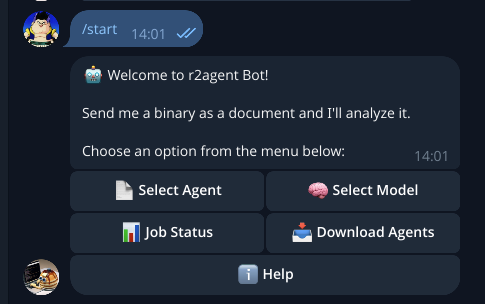
-
The
Select Agentoption lists the currently available agents (prompts):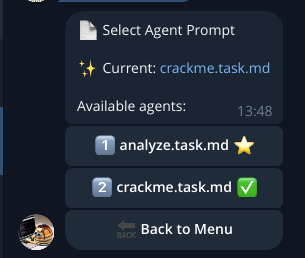
-
The
Select Modeloption shows the free OpenCode models available at the time of writing: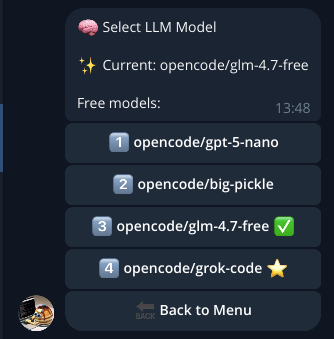
-
Job Statusprovides the results of your analysis: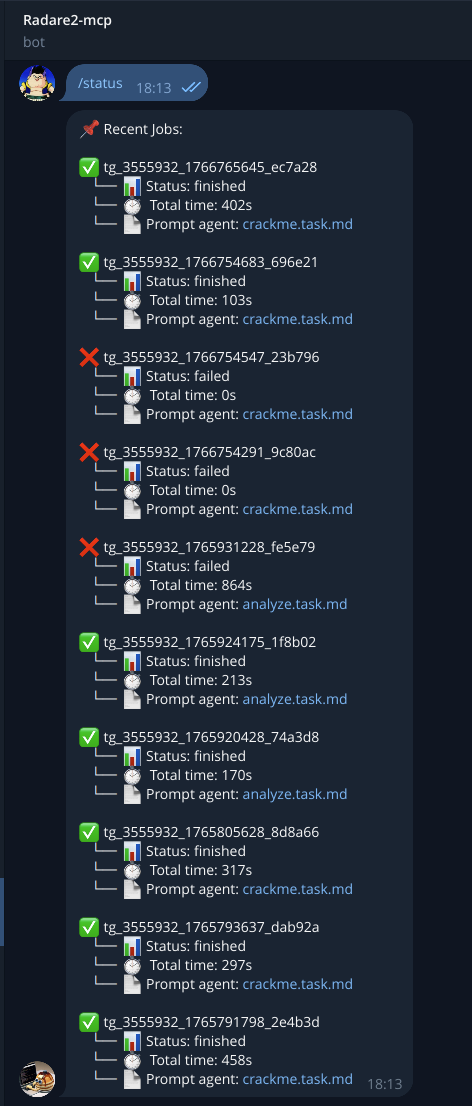
-
Download Agentsallows you to download the agents’ (prompts’) MD file: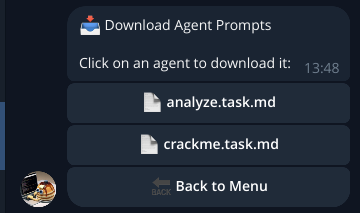
Once the analysis completes, the bot attaches the results in Markdown or an error message if an issue occurs: